Print Test Page (Free Black & White, CMYK & Color PDF Online)
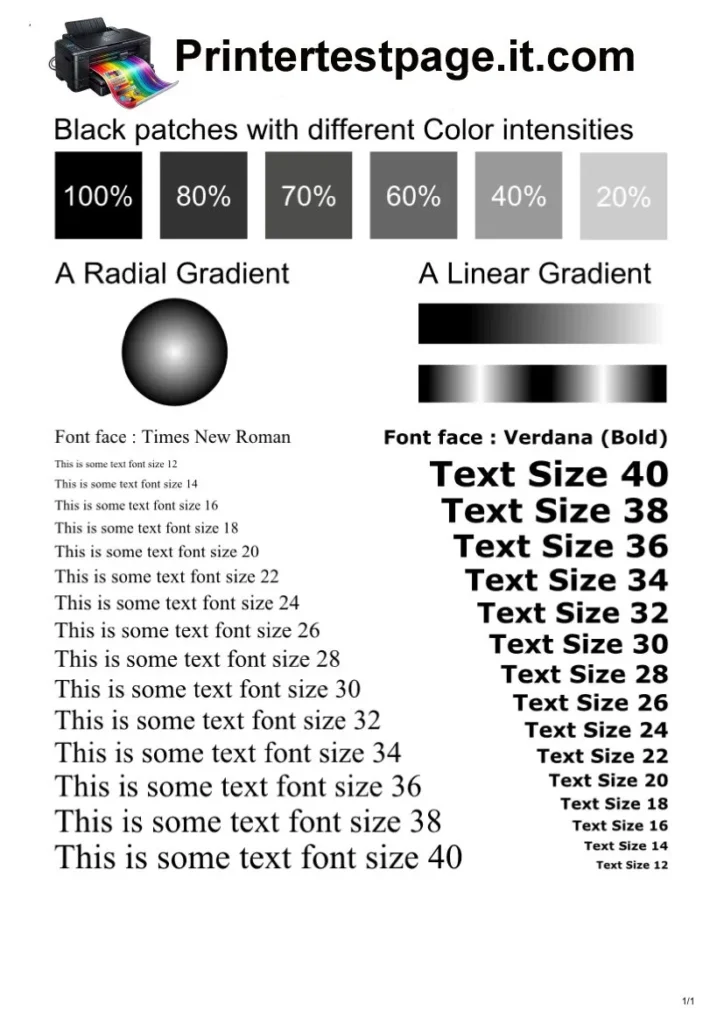
Black and White Test Page
A5
A4
A3
Letter
Legal

CMYK Test Page
A5
A4
A3
Letter
Legal
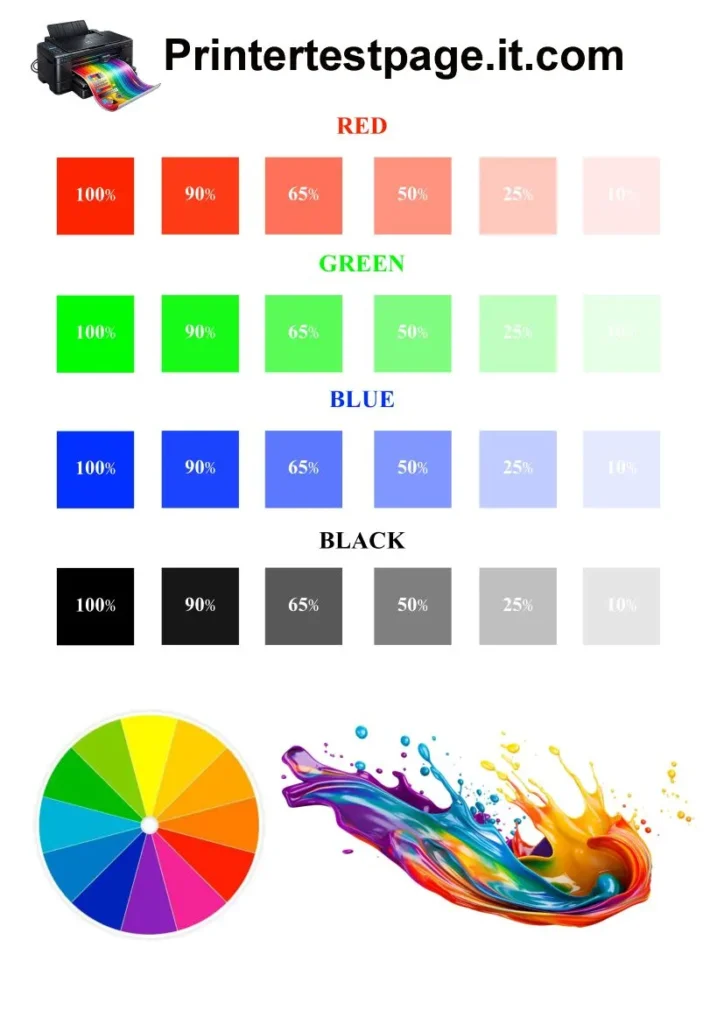
Color Test Page
A5
A4
A3
Letter
Legal
Print Test Page is designed for the convenience of printer testing online. Whether you have an HP, Canon, Epson, Brother, or any color or Black and White printer, you can test your pages here. I have been working as a printer expert in dozens of offices. So I designed this page for the maximum printer test page capacity.
You can also download printable test pages in PDF format on this website for free to ensure your printer is working fine. If you use your printer often, then run printer tests regularly.
Why Choose “Printer Test Page”?
Do you want to keep your print quality superior? Then use this website to maintain consistent print quality and detect alignment errors, low ink levels, faded colors, and clogged printheads with high diagnostic accuracy.
Our print a test page uses ISO-standard diagnostic patterns, CMYK calibration matrices, printhead nozzle check grids, and precision alignment vectors. These features help you to verify that your printer has printhead misalignment, ink density imbalance, color channel deviation, and nozzle obstruction with 100% measurement accuracy.
How to Use a Print Test Page Online?
Using our print page testing is very simple. Just follow the step-by-step guide below.
Step 1: Choose the Preferred Testing Page on this Website
Your first step is to choose your preferred test page available on this website. If you are unsure, then here are the details to choose the right page for your testing.
- Black and White Test Page: To test the grayscale accuracy.
- Color Test Page: For testing CMYK color calibration.
- Alignment Test Page: Test for printhead positioning
- Nozzle Check Pattern: For printhead nozzle health
Now scroll up and download your preferred printer test page. You can also test it online without downloading.
Step 2: Load the Correct Paper into the Printer
Now you need to insert a standard paper into your printer’s input tray. You can use one of the following options:
- Letter paper (8.5 × 11 inches): This paper size is for United States printer standards.
- A4 paper (210 × 297 millimeters): This size is for international printers.
This step is very important as it can prevent issues such as margin shift, paper skew, or alignment errors. So choose the paper according to your printer.
Step 3: Set Printer to Default Print Quality
Go to your printer settings from your computer or mobile device and choose either a “Standard Print Quality Mode” or “Normal Print Mode”.
Note: Do not choose “Draft Mode” as it will lower the ink density and affect diagnostic accuracy.
Step 4: Click the Print Button & Wait for the Print Out
Click on the “Print” button located on the printer test page, and it will send the test pattern to the connected printer. After that, you will see your printer appear on the screen. Make sure you have selected the right printer before testing the page.
Once the printing process is started, you need to wait until it is completed. Now, check out the printed paper output and analyze it. A properly printed page shows sharp text, uniform color blocks, and aligned grid lines.
Step 5: Inspect the Black and White Print Test Page
For a black and white print test, you need to check the following details:
- Faded Black Text: It is due to the low black ink level.
- Uneven Shading: Due to the ink density imbalance.
- Broken Lines: It indicates printhead nozzle blockage.
Correct Result: You can confirm your stable black cartridge performance only if your output is clear black.
Step 6: Inspect the CMYK Color Print Test Page
For a color printer test page, you need to review the Cyan, Magenta, Yellow, and Black (CMYK) color blocks on the printed page.
Verify the following parameters:
- Solid Colors: It means your printer has a proper ink flow.
- Missing Color Segments: This is due to the clogged color nozzles.
- Incorrect Shades: It is an indication of color channel deviation.
Correct Result: The correct result is only if the printed paper has Uniform CMYK color blocks.
So these are the steps that you need to take to test your printer for a color or black and white printing test.
Printer Maintenance Guide
You need to run a printer quality test at regular intervals to ensure perfect quality. Here are the details:
Home Printers: Use our print a test page online once every 7–14 days to confirm that your printer has accurate scaling, gradient, and text clarity.
Office Printers: These printers require more frequent testing as they are used more often. You should run a test once every 2–3 days.
After Changing Ink Cartridge: When you change and install a new ink cartridge, it is recommended to run the printer quality test to check color accuracy, smoothness, or alignment issues.
How to Fix Printer Problems?
Now I will solve some of the most common printer problems so you can do it yourself easily. Even if you are not a tech expert, you can do it in just a few steps. So let’s troubleshoot the problems.
1) Nozzle Blockage
One of the most common yet many people find this issue very difficult to solve. If you are facing one of the following symptoms, then you need to fix the nozzle blockage.
- Faded black text output
- Horizontal white lines on all paper
- Uneven CMYK color distribution
- Missing Cyan, Magenta, or Yellow color bands
Here is the simple troubleshooting for this issue:
- Go to your “Printer Settings” from your computer control panel.
- Choose your connected printer from the device list.
- Look for the Maintenance or Tools section.
- Choose “Printhead Cleaning” from the available options.
- Now wait for 1 or 2 minutes until cleaning is completed.
- Print a Print Test Page to verify restored ink flow.
Note: Most inkjet printers restore normal output after 1 to 2 cleaning cycles.
2) Printhead Misalignment
Facing blurred graphics, overlapping characters, or shifted text? You need to do this:
- Go to the “Printer Maintenance Settings” on your computer.
- Select the option “Alignment Calibration“.
- Choose alignment values on your screen.
- Save your calibration settings.
- Print the Alignment Test Page to confirm straight lines and sharp output.
Note: Most printers complete alignment calibration within 2 to 5 minutes.
3) Replace Low Ink or Toner Cartridges
Experiencing faded output? Here is how to fix this:
- Disconnect your printer from the power supply and your device, and then open its access cover.
- Look for the empty ink cartridge or toner cartridge and remove it.
- Install a new cartridge into the slot from which you removed the previous one.
- Now, close the printer cover carefully and securely.
- Allow the printer to initialize the cartridge.
- Test a print to check the printer ink and the printer cartridge.
Note: Most ink cartridges produce 150 to 600 pages, while toner cartridges produce 1,000 to 3,000 pages, depending on model capacity.
Types of Printers
There are mainly two types of printers in the US.
- Grayscale Printer
- Color Printer
According to the Toner Buzz report, 62% of households in the US had a printer in 2019. Also, the United States reached a $77.7 billion worth printer industry in 2021. This industry has given jobs to 350K US citizens.
So a printer is a must-have device in the US. Let’s explore more about the types of printers in the US.
Grayscale Printer
It is the traditional printer that is also called a black and White printer. It uses only a black ink cartridge and is widely used for printing documents, official papers, and many other printing needs.
Color Printer
A Color Printer uses CMYK ink cartridges consisting of Cyan, Magenta, Yellow, and Black to produce multi-color images, graphics, and photo-quality prints.
A Color Printer supports tasks such as image printing, presentation graphics, and marketing materials that require precise color reproduction and high-quality gradient detail.
Inkjet Printer
This is a type of printing technology. This printer sprays microscopic liquid ink droplets onto paper through printhead nozzles.
Laser Printer
This is another printing technology that uses laser beams and powder toner cartridges. The beams form an image on the paper.
Major Printer Brand Contact Information
| Printer Brand | Email Address | Phone Number |
| HP | support@hp.com | 1800-258-7170 |
| Canon | customersupport@canon.co.in | 1800-208-3366 |
| Brother | customercare@brother.in | 1800-209-8904 |
| Epson | Not Available | 1-800-463-7766 |
| Dell | Support@Cloudstore.Dell.com | 1-800-624-9896 |
| Kyocera | Not Available | 1-800-349-4478 |
| Lexmark | Not Available | 1-800-539-6275 |
Conclusion
This page displays varied font samples, precision alignment guides, labeled text blocks, and a radial gradient to verify smooth color transition and accurate print output. You can access this page for free online and instantly to check any type of printer. Keep your printer perfect with the help of this website. If you have any questions, check out the FAQ section below.